A remote amateur radio exam can begin with something as simple as a clear view of your photo ID and a working camera. That is why a little preparation matters. This Zoom setup guide for exam day helps you remove preventable technical issues before your scheduled session, so you can focus on the questions in front of you rather than the technology around you.
Remote testing is designed to make earning or upgrading an FCC amateur radio license more convenient, but it still follows a structured proctoring process. Your Volunteer Examiners must be able to verify your identity, communicate with you clearly, and observe the testing environment. Planning ahead supports exam integrity and gives you a calmer start.
1. Use the right device and connection
Choose a laptop or desktop computer with a webcam, microphone, and reliable internet connection. A larger screen makes it easier to follow instructions, view the exam materials, and keep the Zoom window visible. While a phone or tablet may work for some parts of the process, a computer is generally the better choice for completing a remote exam.
Use a private home internet connection whenever possible. Public Wi-Fi, weak signals, and cellular hotspots can be unpredictable, particularly if others are streaming video or gaming on the same network. If your connection is usually slow, ask household members to avoid bandwidth-heavy activities during your appointment.
A wired Ethernet connection is ideal when available, but strong Wi-Fi is often perfectly adequate. The practical goal is not a complicated technical setup. You need a stable connection that keeps your video and audio active throughout the session.
2. Install and test Zoom before exam day
Do not wait until your appointment time to open Zoom for the first time. Install the Zoom app on the computer you intend to use, then sign in if your session instructions require it. Apply any pending system or Zoom updates a day or two before the exam, not minutes before it begins.
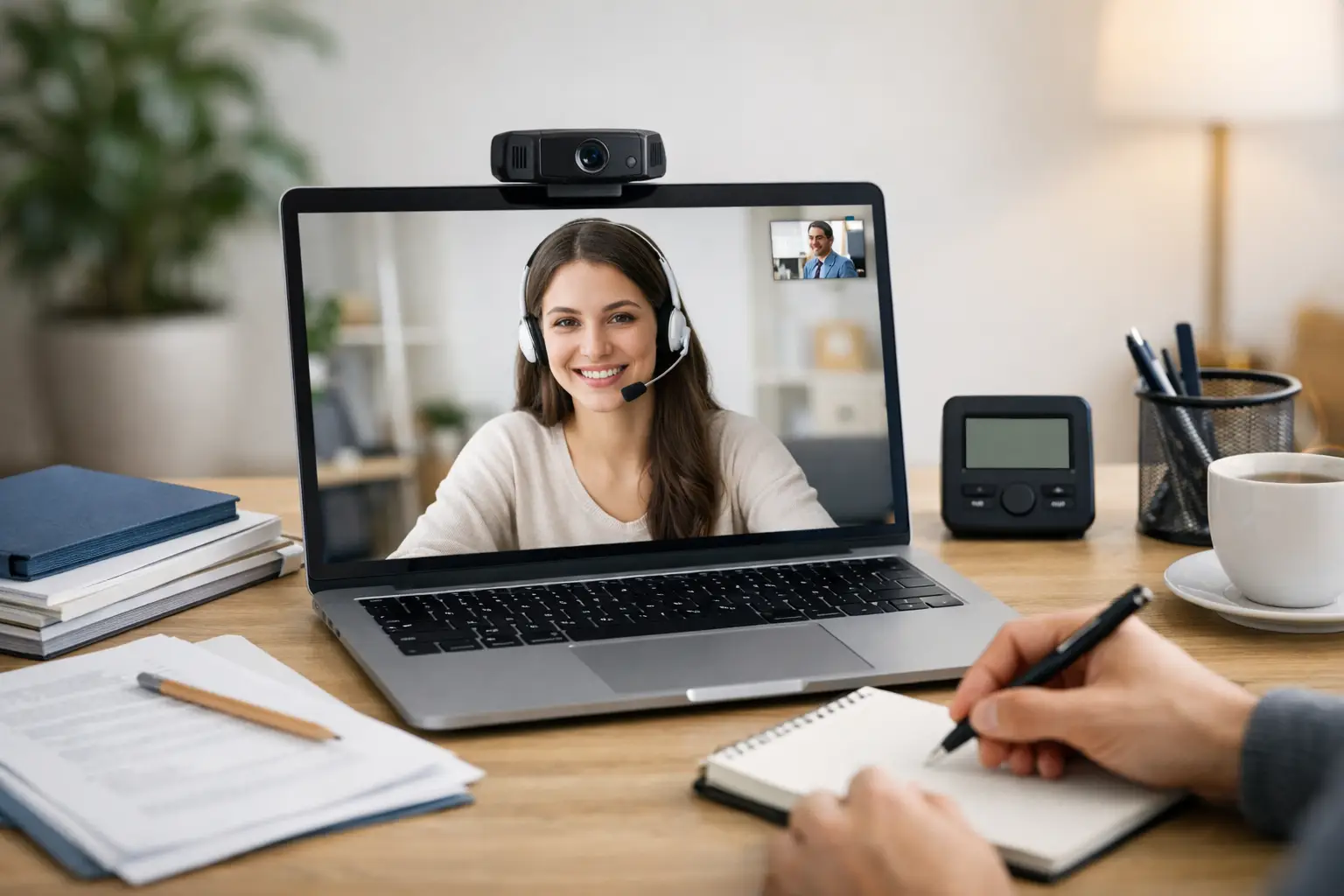
Open Zoom and test the camera. Confirm that your face is well lit, centered, and easy to see. Then test the microphone and speakers. Say a few words at a normal volume and make sure you can hear the playback clearly.
If Zoom offers more than one microphone or speaker option, select the device you plan to use for the exam. A built-in laptop microphone is often enough in a quiet room. Headphones may improve sound quality, but follow the specific instructions from your exam team about whether they are permitted for your session. When instructions and general advice differ, always follow the instructions for your scheduled exam.
3. Prepare a quiet, private testing space
Your testing area should allow proctors to confirm that you are working independently and without unauthorized materials. Pick a room where you can close the door, limit interruptions, and remain for the full appointment. Let family members, roommates, and pets know that you need quiet time.
Clear the desk or table before the session. Keep only the items your exam team has told you to have available, such as your government-issued photo ID and any permitted materials. Put away books, notes, second monitors, radios, tablets, smart watches, and other electronics unless your exam instructions specifically say otherwise.
Your Volunteer Examiners may ask you to use your camera to show the room, desk surface, and surrounding area. Make enough space to move the computer or webcam safely if requested. This room scan is a normal part of remote proctoring, not a sign that something has gone wrong.
4. Set your camera and lighting for a clear view
Place your computer on a stable surface at a comfortable height. Avoid balancing it on a stack of books or holding it in your lap. A steady camera helps the session move efficiently and makes it easier to complete any required room scan.
Light should be in front of you, not directly behind you. Sitting with a bright window behind your chair can turn your face into a shadow on camera. A lamp facing the wall behind your screen or natural light from the front or side usually works well.
Wear ordinary, comfortable clothing and keep your face fully visible. You do not need a studio-quality video setup. You simply need a clear image that lets the exam team identify and communicate with you.
5. Gather your identification and exam information
Locate your unexpired government-issued photo ID well before the session. Check that the name on your identification matches the name used for your exam registration. If you have an existing amateur radio license and are taking an upgrade exam, have the information requested in your appointment instructions ready as well.
Review your confirmation email carefully. It should tell you when to join, what time zone applies, which documents or forms you need, and any payment or registration details to complete beforehand. Save the meeting information somewhere easy to find, but do not rely on searching through a crowded inbox at the last minute.
For online testing, preparation is partly administrative. A candidate can be fully ready for the question pool but still face a delay if their identification, registration information, or required forms are not available. Taking five minutes to check these details is worthwhile.
6. Close distractions and protect your test time
About 20 to 30 minutes before your appointment, restart your computer. This clears many small issues and closes background processes that may compete for memory or internet bandwidth. After restarting, open only what you need for the session.
Close email, messaging apps, web browsers, social media, games, cloud backups, and video streaming services. Turn off phone notifications and place your phone out of reach unless your exam team has directed you to use it for a specific purpose. A ringing alert can break your concentration, and visible unrelated screens can complicate the proctoring process.
Before joining Zoom, make a quick final check:
- Your computer is plugged in or fully charged.
- Your internet connection is active and stable.
- Your photo ID is within reach.
- Your desk and room are clear.
- Other people in the home know not to interrupt.
These are small details, but they make the first few minutes of a remote session much easier for everyone.
7. Join early and communicate clearly
Plan to join the Zoom meeting a few minutes early, using the meeting information supplied by your exam team. Arriving early gives you time to resolve a simple issue, such as selecting the wrong microphone or allowing Zoom access to your camera, without feeling rushed.
When you enter, keep your camera on unless directed otherwise and listen for instructions. You may spend a few minutes in a waiting room before being admitted. That is normal. Once the session begins, answer questions clearly and ask for clarification if you do not understand a proctoring instruction.
If technology fails, stay calm. A frozen screen, muted microphone, or brief connection drop does not automatically end your opportunity to test. Follow the directions you have been given and communicate with the exam team using the approved method. Professional remote exam teams, including Middle Tennessee Exams, know that candidates are not technology specialists and will guide the process while protecting required testing standards.
What not to change at the last minute
Avoid major changes on exam day. Do not switch to an unfamiliar computer, rearrange your network, install a new antivirus program, or test from a different room unless necessary. A setup that worked during your practice check is usually the safest setup for the actual appointment.
The same principle applies to your physical environment. A quiet, ordinary room with a clear desk is better than a last-minute attempt to create a perfect-looking workspace. The goal is a compliant space where you can think clearly and where the exam team can complete its required checks.
A remote licensing exam is still a real FCC examination, and it deserves your attention. Once your camera is working, your room is ready, and your identification is in hand, you have done the practical work that supports a smooth session. Take a breath, listen to your Volunteer Examiners, and give the exam the same steady focus you brought to studying for it.